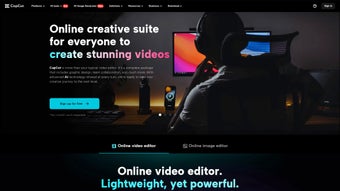

Download CapCut Online Creative Suite – Free Video Editing, AI‑Powered Tools & Collaboration
Overview
CapCut Online Creative Suite is a web‑based video‑editing powerhouse that brings professional‑grade capabilities to any browser. Whether you are a hobbyist creating TikTok clips, a marketer polishing brand videos, or a small team collaborating on a promotional reel, CapCut provides a complete toolbox without the need for bulky desktop installations. The platform blends classic editing functions—such as trimming, cutting, multi‑track audio, and color correction—with cutting‑edge AI features that automatically suggest transitions, generate subtitles, and even match music beats to visual cuts.
Its intuitive, drag‑and‑drop interface is built for speed, allowing users to jump straight into creative work without a steep learning curve. Because everything runs in the cloud, updates roll out instantly, ensuring you always have the latest effects, templates, and security patches. CapCut also offers an extensive library of royalty‑free music, sound effects, stickers, and visual filters, making it easy to add polish with just a few clicks.
Collaborative tools let multiple editors work on the same project simultaneously, complete with version history and comment threads, which dramatically improves workflow for remote teams. In short, CapCut Online Creative Suite is a secure, free‑to‑start solution that scales from quick social‑media edits to full‑length video productions, all while keeping the process straightforward and accessible.
Key Features & AI‑Enhanced Capabilities
- Browser‑Based Editing: No download required; works on Windows, macOS, Linux, Android and iOS browsers.
- Precision Trimming & Cutting: Frame‑accurate timeline, ripple delete, and split tools for seamless cuts.
- Multi‑Track Audio Mixer: Adjust volume, add fade‑ins/outs, and sync soundtracks with video layers.
- AI Auto‑Subtitle Generator: Speech‑to‑text engine creates accurate subtitles in multiple languages with one click.
- Smart Transition Suggestions: Machine‑learning algorithm recommends transitions that match the rhythm of the clip.
- Beat‑Sync Editing: AI analyzes music tracks and automatically aligns cuts to the beat, perfect for music videos.
- Template Library: Hundreds of pre‑designed video templates for intros, ads, vlogs, and social media formats.
- Royalty‑Free Media Assets: Built‑in catalog of music, sound effects, stickers, filters, and motion graphics.
- Real‑Time Collaboration: Invite teammates, leave comments, and edit together with live updates.
- Cloud Export & Direct Sharing: Export to MP4, GIF, or directly publish to YouTube, TikTok, Instagram, and Facebook.
Why AI Makes a Difference
Artificial intelligence is no longer a gimmick in CapCut; it is woven into the core workflow. The AI subtitle tool leverages deep‑learning models that recognize accents and background noise, delivering up to 95 % accuracy after a brief verification step. This saves creators hours of manual typing, especially for multilingual audiences.
The smart transition engine analyses shot composition, motion vectors, and color palettes to suggest cuts that feel natural, reducing the need for trial‑and‑error. Beat‑sync editing, another AI‑driven feature, examines the waveform of any imported track and automatically places edit points on major beats, allowing creators to produce rhythm‑driven videos without a music‑editing background. These AI helpers not only accelerate production but also raise the overall quality of the final video, making CapCut an attractive option for both novices and seasoned editors.
Installation, Setup & Usage Guide (Including Compatibility)
Because CapCut Online Creative Suite lives in the cloud, the installation process is reduced to a few simple steps. Follow the guide below to get started quickly and securely.
Step‑by‑Step Installation
- Open your preferred web browser (Chrome, Edge, Firefox, Safari) and navigate to capcut.com/online.
- Click the “Sign Up Free” button. You can register with an email address, Google, or Apple ID. The registration process is encrypted with SSL/TLS to protect your credentials.
- After confirming your email, you will be redirected to the dashboard where the editor loads instantly.
- Optionally, install the optional Progressive Web App (PWA) shortcut on your desktop or mobile home screen for faster access. This does not require additional storage beyond the cache.
First‑Time Project Creation
Once logged in, click “New Project.” Drag and drop video files, images, or audio into the timeline. The interface is divided into three main panels: Media Library (left), Preview Window (center), and Timeline Controls (bottom). Use the toolbar above the preview to access trimming, split, speed adjustment, and AI tools. For AI subtitle generation, select the clip, click the “Subtitle” icon, choose language, and press “Generate.” Review and edit any mis‑recognized words, then hit “Apply.”
Exporting & Sharing
When the edit is complete, click the “Export” button. Choose your desired resolution (720p, 1080p, 4K), format (MP4, GIF), and bitrate. You can also toggle “Direct Share” to publish instantly to social platforms. Exported files are stored in your cloud library for up to 30 days, after which you can download them to local storage.
Compatibility & System Requirements
CapCut Online Creative Suite runs on any modern operating system that supports HTML5 and WebGL, including Windows 10/11, macOS 10.15+, Linux distributions with recent browsers, Android 8.0+ and iOS 13+. A stable internet connection (minimum 5 Mbps for HD editing) is recommended, as all rendering and AI processing occur on CapCut’s cloud servers. The platform automatically detects your device’s capabilities and adjusts the preview quality to ensure smooth playback, even on lower‑end hardware.
Troubleshooting Tips
If you experience lag, clear your browser cache, close unnecessary tabs, or switch to a wired connection. For audio sync issues, ensure your source files use a supported codec (AAC, MP3, WAV). Should the AI features appear unresponsive, verify that your browser allows access to the microphone and that you are not behind a restrictive firewall.
Pros, Cons & Detailed Review
Pros
- Fully browser‑based – no heavy downloads or installations.
- AI‑driven subtitle, transition, and beat‑sync tools dramatically speed up workflow.
- Extensive template and royalty‑free media library.
- Real‑time collaboration with version history and comment threads.
- Free tier with generous export limits; premium upgrades are optional.
- Regular cloud updates keep features fresh and secure.
Cons
- Requires a stable internet connection; offline editing is not possible.
- Export speed depends on server load and internet bandwidth.
- Advanced color grading tools are less comprehensive than desktop‑only software.
- Some AI features (e.g., premium templates) are locked behind a subscription.
- Limited support for legacy browsers (Internet Explorer not supported).
CapCut Online Creative Suite strikes an impressive balance between accessibility and power. The AI tools alone set it apart from most free editors, while the collaborative environment makes it a natural fit for remote teams. Performance is solid on modern browsers, and the constant cloud updates eliminate the hassle of manual patches. The main drawback is the reliance on internet connectivity, which can be a limitation for creators in low‑bandwidth regions. Overall, CapCut delivers a professional‑grade editing experience at no cost, making it a top recommendation for creators looking to upgrade from mobile‑only apps without investing in expensive desktop suites.
Frequently Asked Questions
Is CapCut Online Creative Suite completely free?
The core editor, AI subtitle generator, and most templates are free. CapCut offers optional premium subscriptions for advanced effects, exclusive templates, and higher export resolutions, but the free tier is sufficient for most personal and small‑business projects.Can I edit videos offline?
No. CapCut is a cloud‑based application, so an internet connection is required for loading the editor, using AI features, and exporting videos. However, you can work on already loaded projects offline for a limited time if your browser supports background sync.What video formats does CapCut support for import and export?
CapCut accepts MP4, MOV, AVI, WMV, and GIF for import. Export options include MP4 and GIF, with selectable resolutions up to 4K (premium). Audio can be imported as MP3, AAC, or WAV.Is my data secure when I upload videos to the cloud?
Yes. CapCut uses end‑to‑end encryption (TLS 1.3) for all file transfers and stores media on secure, GDPR‑compliant servers. Projects are private by default; you must explicitly share a project link to collaborate.How does the AI subtitle generator handle multiple languages?
The subtitle engine supports over 30 languages, including English, Spanish, Mandarin, Hindi, and Arabic. You select the desired language before generation, and the AI automatically detects speech patterns and punctuation, delivering subtitles that can be edited directly in the timeline.Conclusion & Call to Action
CapCut Online Creative Suite has reshaped what a free video‑editing tool can achieve. By marrying a sleek, browser‑based interface with AI‑powered automation and real‑time collaboration, it empowers creators of every skill level to produce polished, engaging videos without the overhead of traditional desktop software. If you’re looking for a secure, regularly updated platform that lets you edit from any device and share instantly to social media, CapCut is a compelling choice. Download CapCut Online Creative Suite today, start a free project, and experience the future of video editing right in your browser.



.png)